Display Canva designs on Screenly digital signs
Canva is an intuitive design tool that allows anyone to display beautiful
by dmountcastle
Canva is a user-friendly design platform packed with templates for presentations, whiteboards, process maps, and more. Whether you're visualizing team workflows or creating branded content, Canva makes it easy to build beautiful, collaborative designs.
With Screenly, you can turn those designs into live signage — perfect for office displays, internal dashboards, and creative showcases. In the post below, we'll walk you through the steps to display your Canva designs on a digital sign with Screenly.
Step 1: Set up a screen in Screenly
If you're new to Screenly, you can sign up for a free 14-day trial — no payment info required. If you're already signed up, log in here and open your Screenly dashboard.
To get started:
- Click on Screens in the left-hand navigation
- Then select Add Screen
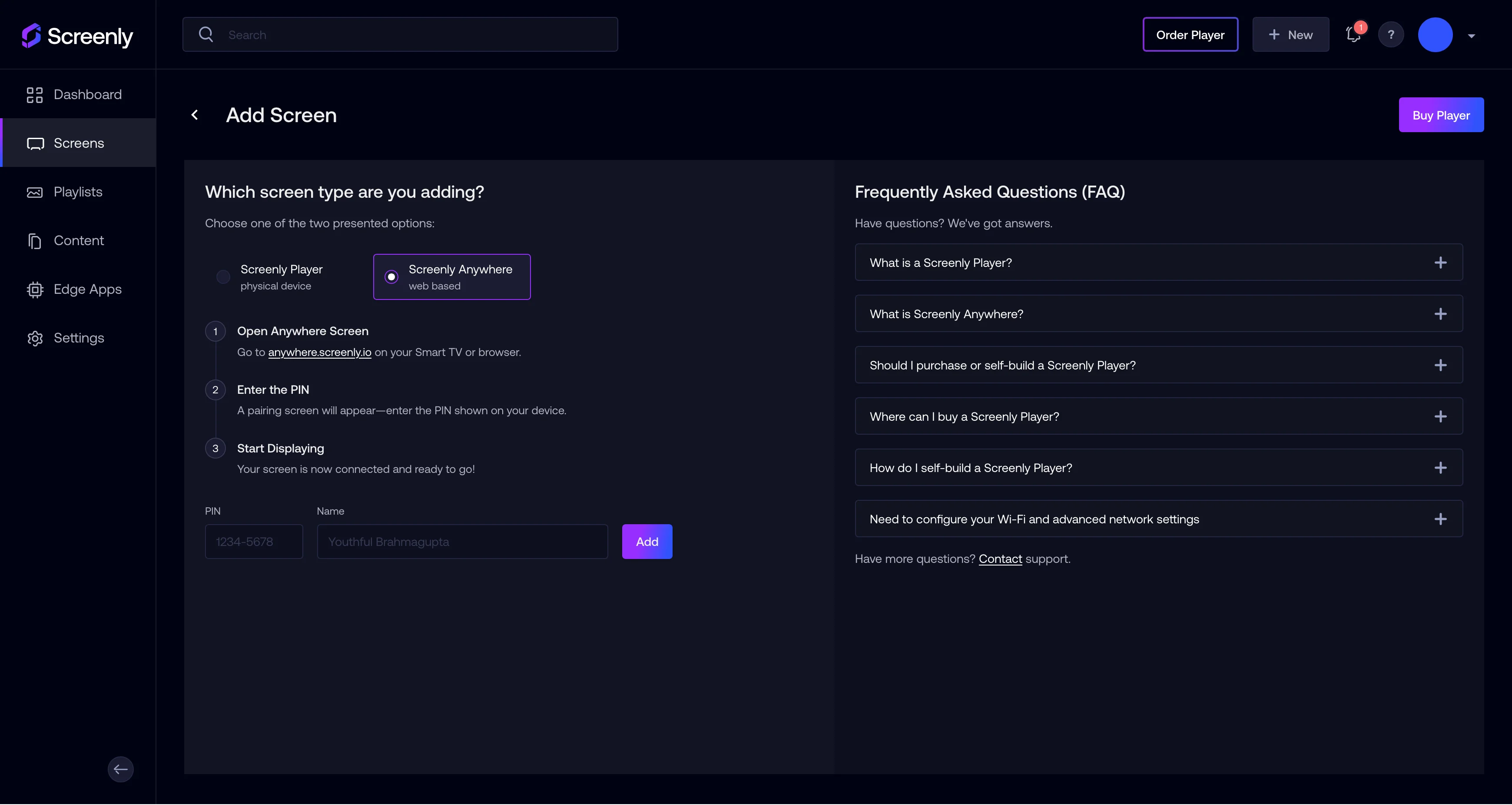
We’ll use Screenly Anywhere for this setup, which allows you to display content directly in a browser without extra hardware.
Visit anywhere.screenly.io on the screen device you want to use. Enter the pairing code that appears in the corresponding text field in your Screenly account.
Give your screen a name like Test Screen and hit Add to connect it.
Step 2: Get the share link for your Canva content
Open a new browser tab and log in to your Canva account.
Select the design you’d like to feature — this could be a mind map, presentation, whiteboard, or any other layout that displays your content. Canva’s templates work well for sharing business workflows, marketing strategies, internal team updates, and more.
Next, you need to create a public viewing link in Canva.
- Click the Share button in the top-right corner
- Click Public view link and not the Copy link button
- Then, in the new popup modal view, click Copy to copy the public URL to your clipboard
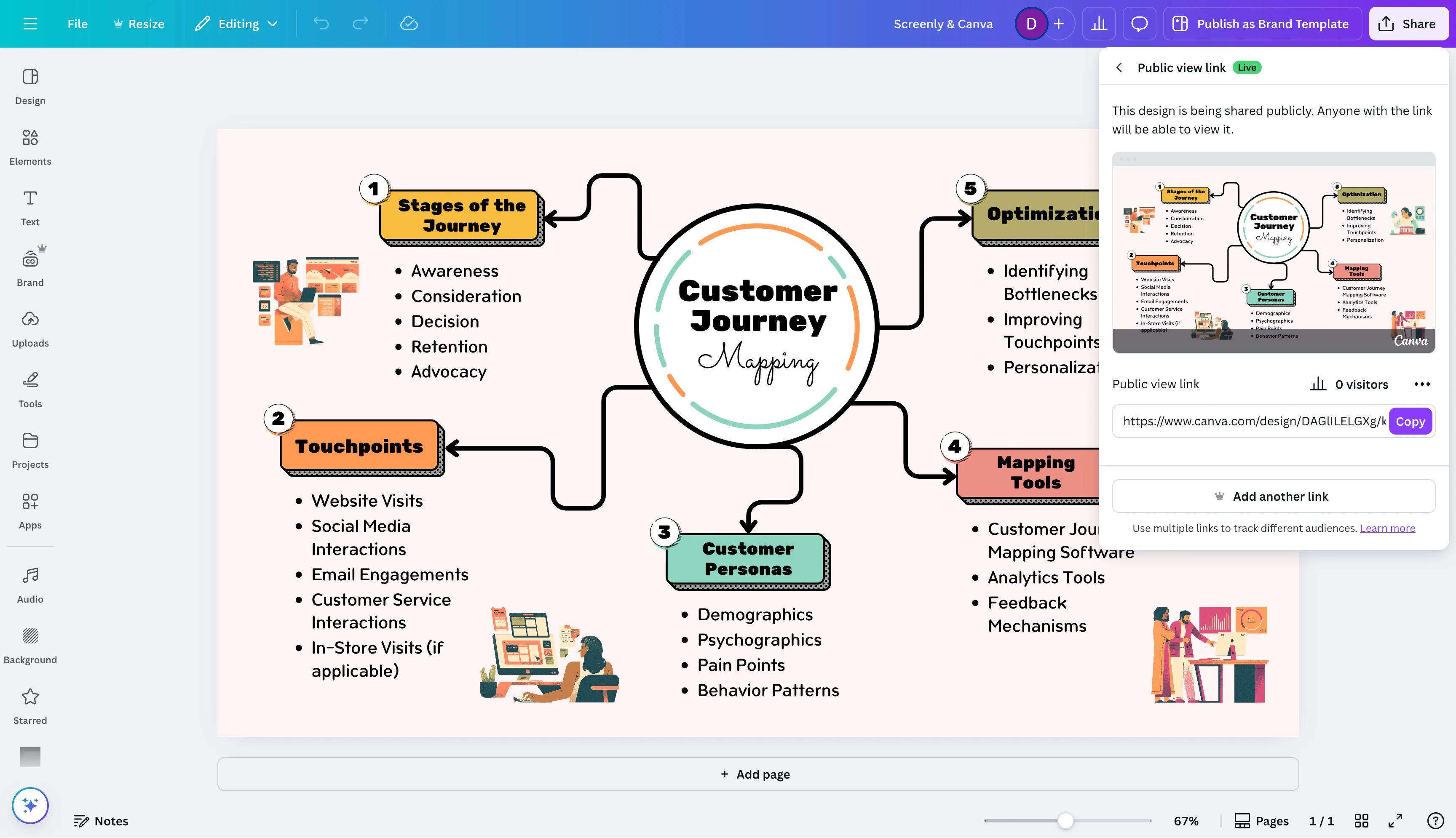
With your share link copied, you're ready to bring your Canva content into your Screenly account.
Step 4: Add your Canva design to your Screenly content folder
Head back to your Screenly account:
- Go to the Content tab
- Click + New Content
- Choose URL in the modal window
- Paste your Canva share link and hit Finish
- Give the content a name like Canva, then click Save
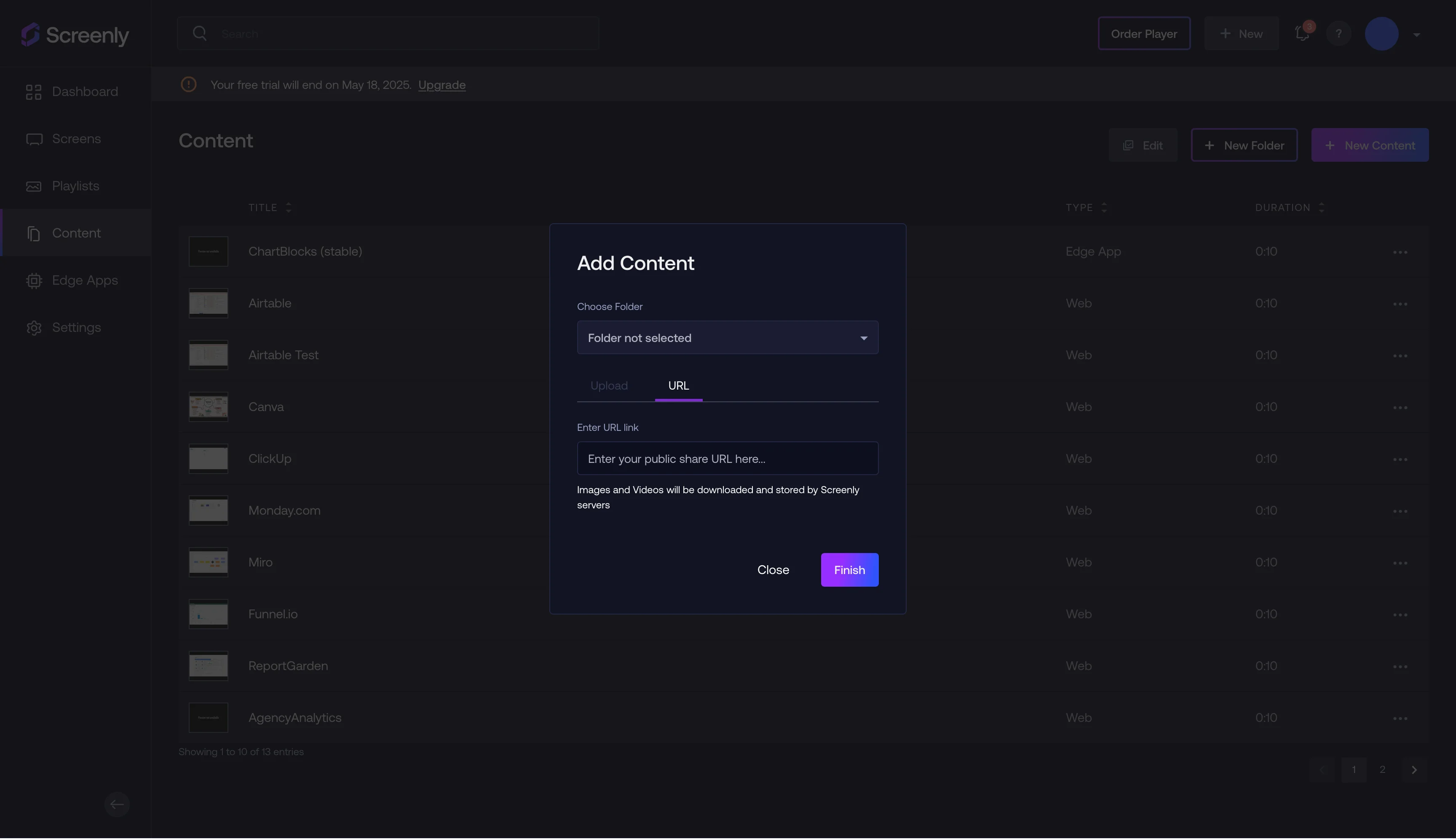
Your Canva content is now uploaded to your Screenly account and ready to be scheduled.
Step 5: Build a playlist, schedule your content, and assign it to a screen
The next step is to build a playlist. Playlists are where your content is scheduled and assigned to display on screens.
- In you Screenly account, click on the Playlists tab
- Click + New Playlist
- Name it something like Canva
- Under Plays On, choose the Test Screen screen you paired earlier
- Be sure to set the scheduled date to before the current date so the playlist becomes active
- Click + next to Content and add the Canva content item you previously uploaded
- Click Done, then make sure to Save your playlist
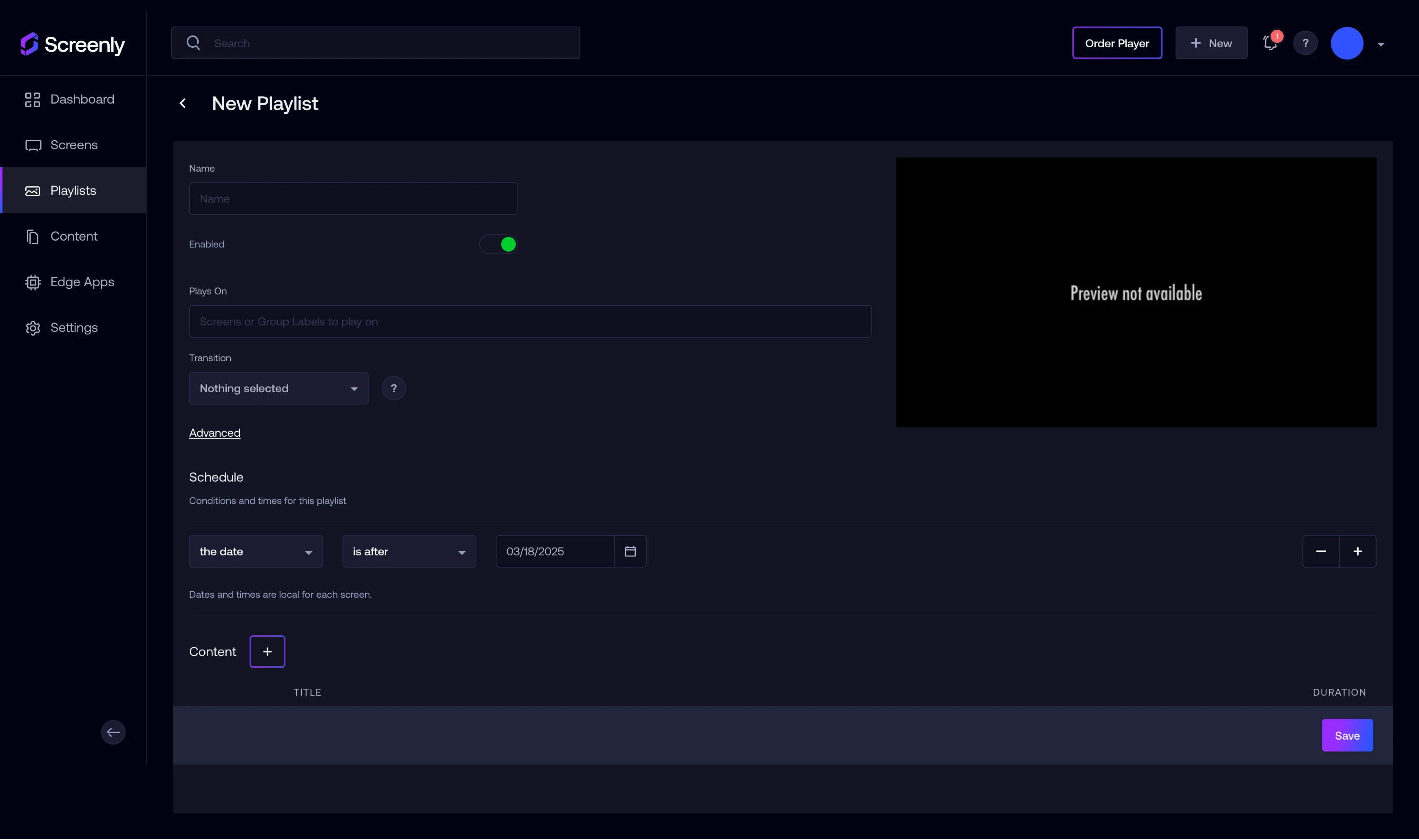
Your playlist is now live and set to display your Canva design on your browser-based screen.
Step 6: You're live!
After a few moments, your Canva content will start displaying on your Screenly Anywhere screen. Whether you're showcasing workflows in a shared workspace, looping a visual pitch in a meeting room, or displaying brand content. It’s a seamless way to share designs with your team.
Try Screenly + Canva Today
With Canva and Screenly together, it only takes a few minutes to turn your creative assets into dynamic digital signage. No extra devices, no complicated setup — just simple, beautiful displays.
Start your free Screenly trial, connect a screen, and start sharing your Canva designs today.
Need assistance? Our Screenly Support team is here to help.